Sign up, install, and switch between web and app
In one line
From signing up to installing: where should I start?
Start light on the web, then add the app when you need it.
The big picture
Illustration (may look a little different from the real screen)
Follow along
What you need before you start
Have a device with an internet connection and the account you’ll sign in with. If it’s for work, first check which accounts your company approves and its rules for handling data.
A ChatGPT account · a web browser. The hands-on Codex desktop exercise also needs a supported computer and the app. Available features can differ by account, plan, and workspace.
Start ChatGPT on the web
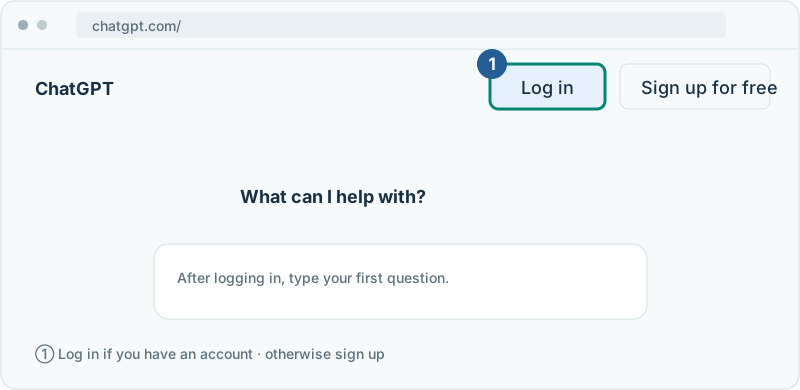
1. Open the official site and choose your account
- Type chatgpt.com into your browser’s address bar and press Enter.
- If you already have an account, choose Log in. If not, choose Sign up for free.
- Sign in the same way you first signed up. For example, if you signed up with Google, pick that same Google account.
- If you’re asked to verify, finish that and come back to the chat screen.
Once you see the box for typing a question, send something short, like “Show me a way to organize my to-dos for today.” The example pictures on this site aren’t real login screens, so don’t type real account details into them.
How do I go between ChatGPT and Codex on the web?
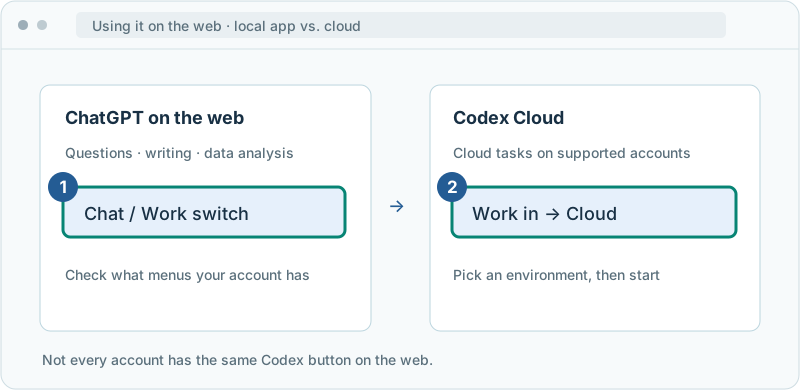
The website and the desktop app don’t get you there the same way. The Chat / Work switch on the ChatGPT website is a different feature from switching to Codex. I can’t promise that every account shows a Codex button in the same spot.
Illustration (may look a little different from the real screen)
1. First, sign in with the same account
Use the “Open ChatGPT on the web” button above. If you use both a work and a personal account, make sure the current profile and workspace are the right ones.
2. Open the Codex link in a new tab
If you see a Codex item on the screen, choose it. If it’s hard to find, use the official link below. This is the address the official help pages give, and depending on whether you’re signed in, you may see an intro page or extra steps first.
Open the official Codex link ↗
3. On the cloud task screen, choose an environment
When the supported task screen opens, choose a published environment in this order: Work in → Cloud → Select environment. An environment is a workspace that holds the code and tools used in the cloud.
If you don’t have an environment yet, you can set one up with Create environment, but it needs extra setup such as connecting a code repository. If you’re new to coding, it’s fine to start with the empty-folder method on the desktop below.
4. To go back to regular chat, switch to the ChatGPT tab
Click the ChatGPT tab you opened first, or go to the ChatGPT website again. If there’s a menu that takes you back to ChatGPT, you can use that too. Don’t assume your regular chats carry over to Codex automatically. Give it the background it needs.
No Codex menu, or only an intro page?
- Check that you’re signed in to the right account and workspace.
- Check whether your plan includes Codex Cloud. The terms for Codex itself and for Cloud are different.
- Work accounts may need an admin to turn on Cloud access.
- A feature your account doesn’t have won’t appear by refreshing or hunting for buttons. Check the current terms in the official help pages.
Checked: November 10, 2026 · Official Codex Cloud guide ↗ · Terms by plan ↗ · Official setup docs ↗
From installing the app to choosing an empty folder
To practice with files on your own computer, follow the steps below. First check your operating system, then open the install steps that apply to you.
1. Check your operating system and where to download
- Mac: Click the Apple menu at the top left of the screen → About This Mac to see your macOS version and chip or processor.
- Windows: Go to Start → Settings → System → About to see your Windows version and system type. Or press Win + R and type winver to see the version.
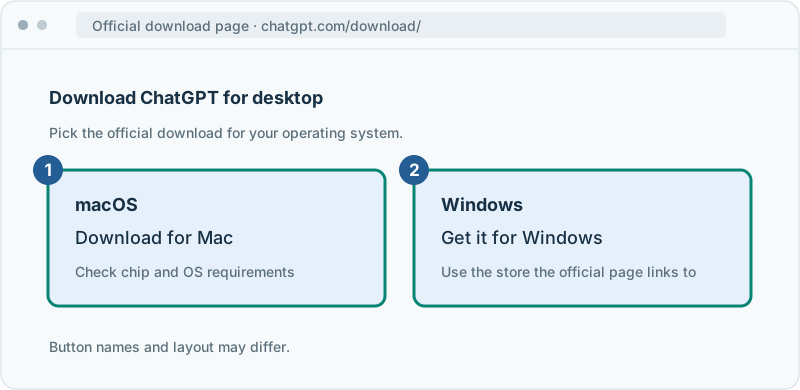
- Open the official download page below and choose the download that matches the requirements.
Open the official download page ↗
Illustration (may look a little different from the real screen)
2. Install it for your operating system
🍎 Mac
Installing on Mac
- Download the Mac installer from the official page.
- In Finder → Downloads, open the file you just downloaded.
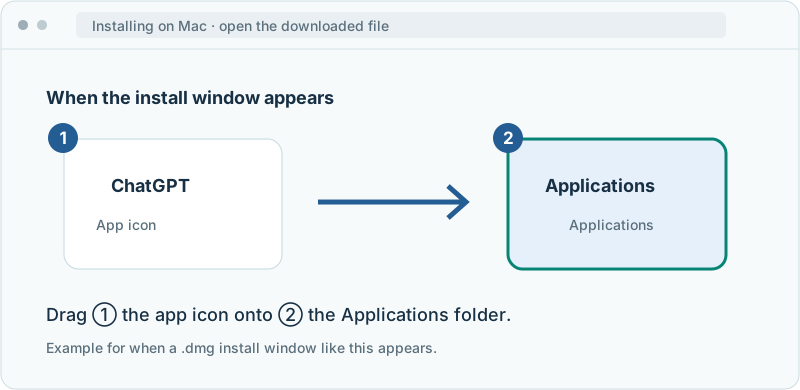
- If it’s a .dmg with an app icon and an Applications folder like the picture below, drag the app icon onto Applications.
- Find ChatGPT in Finder → Applications and open it. If the installer looks different, follow its own steps.
Illustration (may look a little different from the real screen)
🪟 Windows
Installing on Windows
- Choose the Windows download on the official download page.
- If it takes you to a store, check the app name and that the publisher is official, then click Get or Install. If it’s an installer file, run it and follow the steps.
- When it’s done, click Open, or search for ChatGPT in the Start menu.
- If installing is blocked on a work computer, ask your admin for the approved way to install it.
Illustration (may look a little different from the real screen)
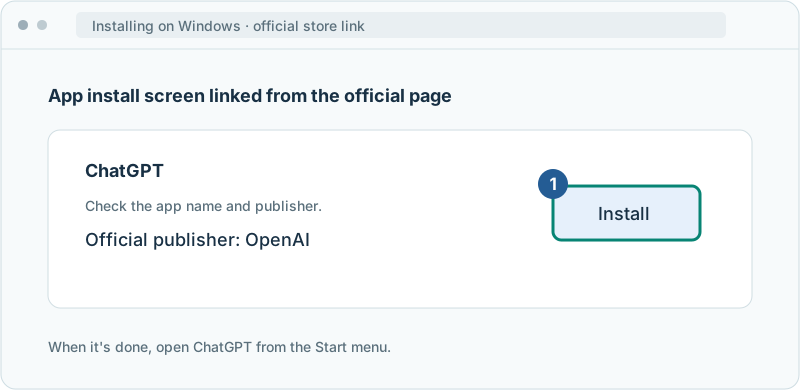
These are examples for each system. If the actual installer or buttons differ, follow the current instructions on the official page.
3. Sign in with the ChatGPT account you signed up with
- Open the app you installed and choose Log in / Sign in.
- When the browser opens, sign in the same way you signed up.
- Make sure it’s the same email, Google, or Apple account you first signed up with. A different account may show a different plan.
- If you see a window asking to return to or open the app, choose it, then check that you’re signed in to the app.
Illustration (may look a little different from the real screen)
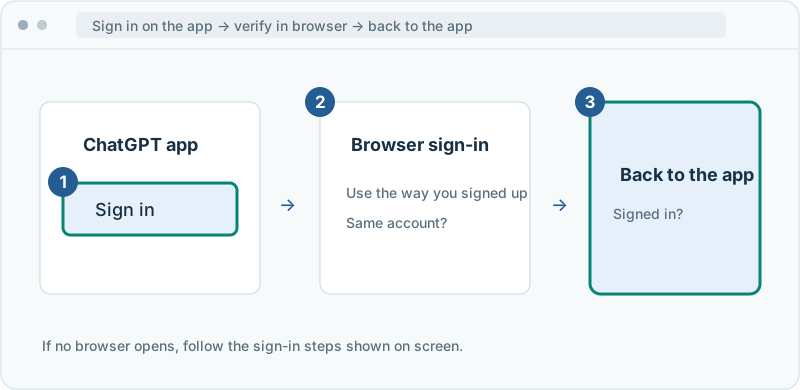
4. Choose Codex from the product menu at the top left
- In the desktop app, open the menu next to “ChatGPT” (or the current product name) at the top left.
- Choose Codex from the list.
- To go back to regular chat, choose ChatGPT in the same menu.
Chat / Work switches how you work inside ChatGPT. That’s different from choosing Codex in the product menu.
Illustration (may look a little different from the real screen)
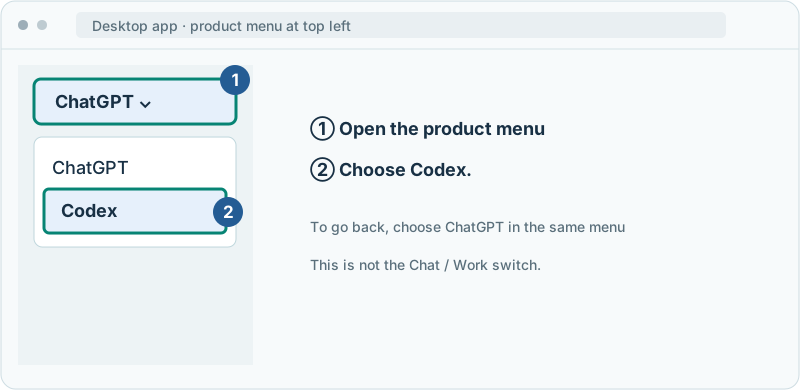
5. Make an empty practice folder and choose it
- On Mac, open your Desktop in Finder and press Shift + Command + N to make a new folder. On Windows, open your Desktop in File Explorer and press Ctrl + Shift + N.
- Name it codex-practice. Open it to make sure it’s empty.
- On Codex’s new task screen, choose Open folder or the option for picking a folder.
- Find the folder you just made and click Open / Select folder.
- Check that the task screen shows the folder you chose. If it asks for file access, read it and make sure it’s access your practice folder needs.
Illustration (may look a little different from the real screen)
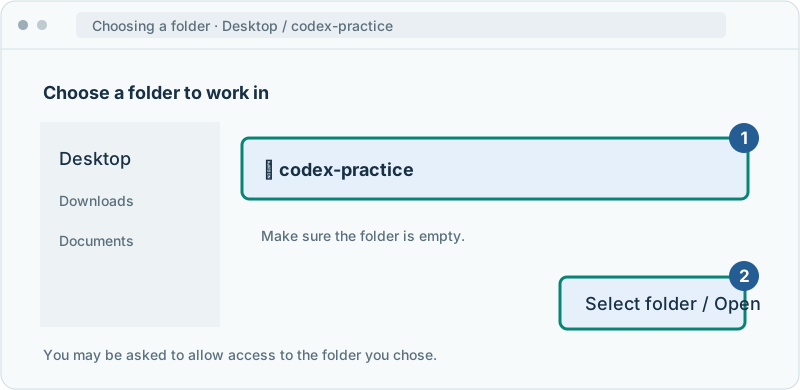
Check that the current product is Codex and that the working folder shows codex-practice. Then copy the prompt below and ask for a plan for your first task. If the option isn’t there because of an install or permission problem, don’t just pick some other folder. Go through the checklist below.
Official guide to switching products ↗ · Official Mac install guide ↗
Prompts you can copy
Change the parts in square brackets to fit your situation, then paste it into ChatGPT or Codex.
Start your first chat
Get ready for your first Codex task
Where people get stuck
If your screen looks different, check these
- Can’t find Codex? Make sure you have the new ChatGPT desktop app. The older ChatGPT Classic may look different. Check the official download page for the latest app.
- Make sure you didn’t sign in with a different account or a work workspace.
- Check the official help pages to see whether your plan and account include that environment.
- If you get an install or sign-in error, write down the error message and your operating system.
After installing the app, you don’t need to go looking for payments or API keys. First see what you can do with your account.
Quick check: When I’m just starting out, do I need to install ChatGPT, Codex, the CLI, and the editor extension all at once?
Answer: “No, start with just the one you need”
Start with one setup. Have your first chat on the web, and add what you need for Codex practice later.
Official sources
I'm stuck here
Stuck while following along? Tell me where. Only the site owner sees this. Leave your email only if you'd like a reply.
💌 Get new tips by email
I'll email you when a new tip goes up. No ads, ever.