Sign up for Claude and pick a plan
In one line
You can sign up for Claude for free and start using it right away. Upgrade to a paid plan later, when you keep hitting the usage limit or want to start Claude Code.
The big picture
★ The plan staircase ★
- Not enough? Go up one step!Free$0
- Pro$20
- Max$100
- Ultra$200
Think of the plans as a staircase. Start on the Free step, and if it’s not enough as you go, move up one step at a time. You don’t need to jump to a high step from the start.
Follow along
I recommend following along in a browser on your computer. There are phone apps too, but the next tips on this site explain things using the computer screen.
You need to be at least 18 to sign up (in some countries the minimum age is higher). When you sign up, you’ll have to agree to an item confirming your age. If you’re a student, check your age first.
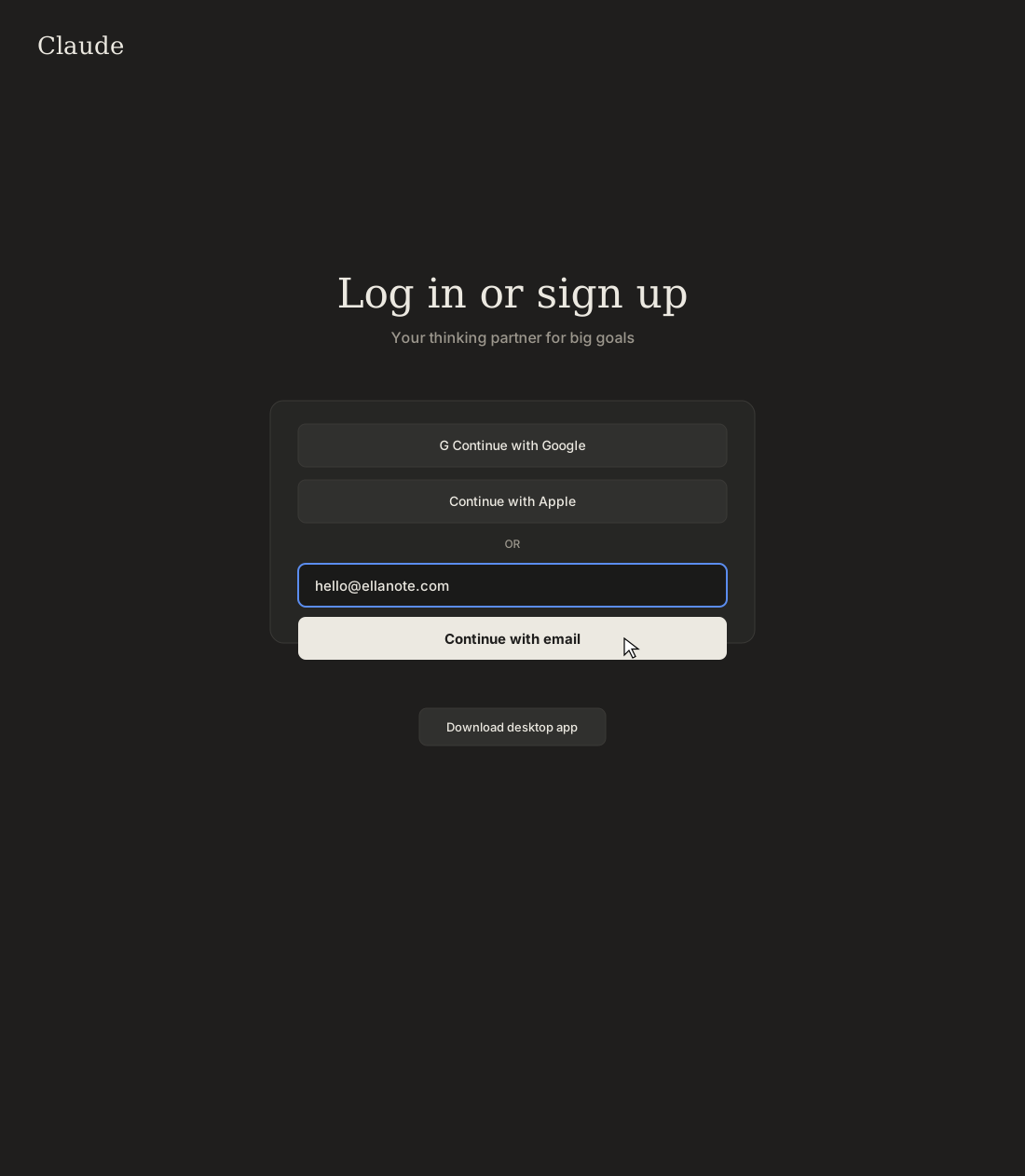
These pictures redraw, in English, the screens Ella saw when she made a new account on November 5, 2026.
Step 1. Enter your email on claude.ai
Type claude.ai into your browser’s address bar and go there. When the sign-in screen appears, enter your email address and click Continue with email. If you have a Google or Apple account, you can continue with that instead.
Illustration (may look a little different from the real screen)
Step 2. Click the login link in your inbox
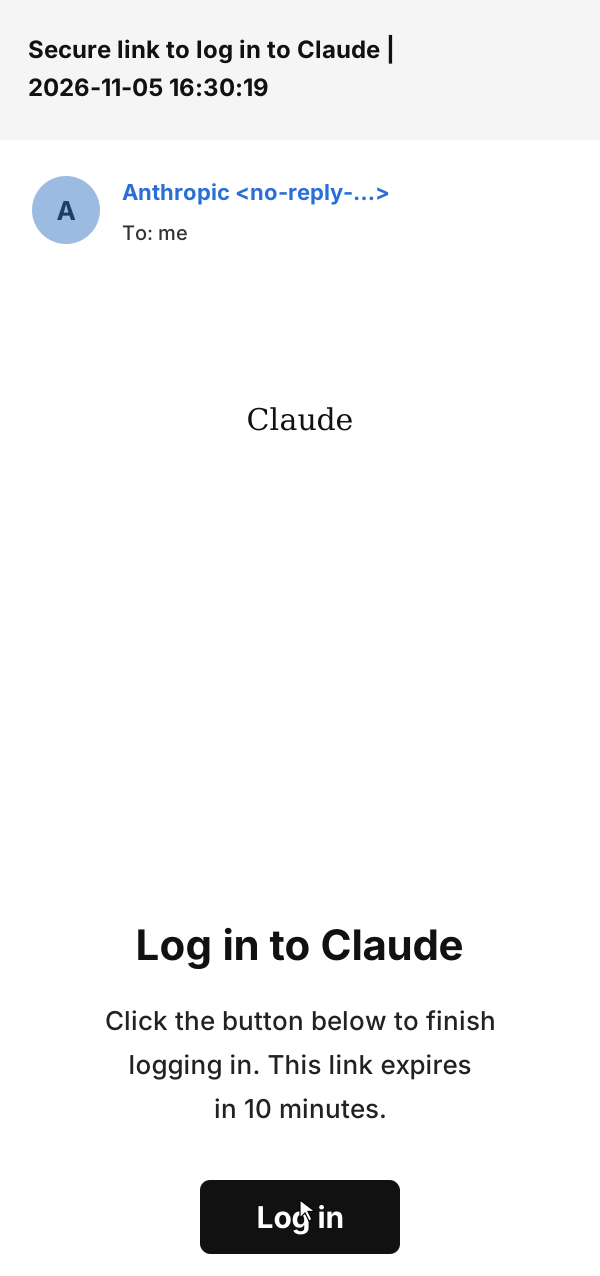
You’ll see a screen saying “To continue, click the link sent to” your address. Open your inbox and you’ll find an email titled “Secure link to log in to Claude”. Click the Log in button in the email. The link expires after 10 minutes. You can also click “Enter verification code” on the screen and type in the code from the email.
Illustration (may look a little different from the real screen)
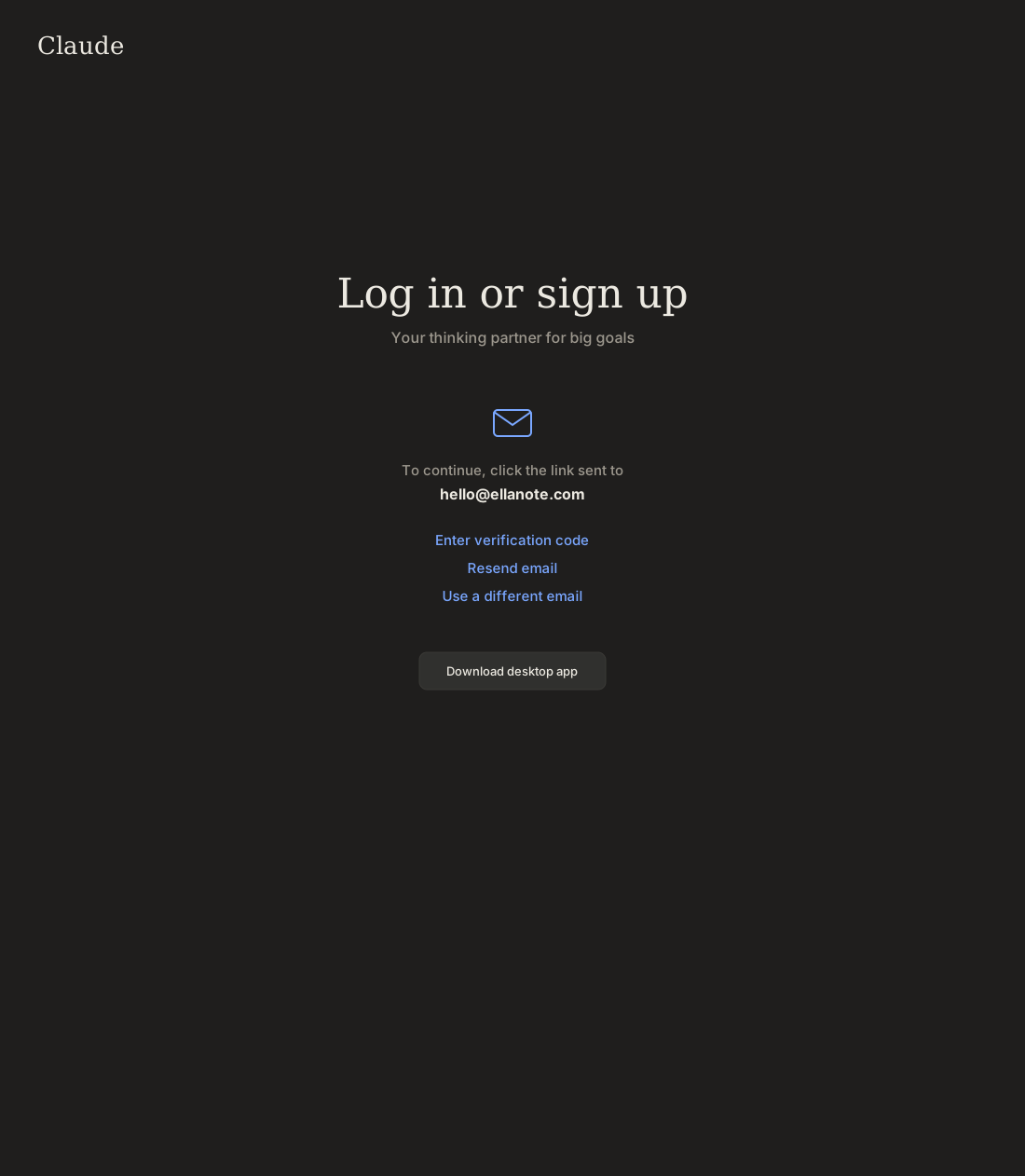
Illustration (may look a little different from the real screen)
Step 3. Agree to the terms and create your account
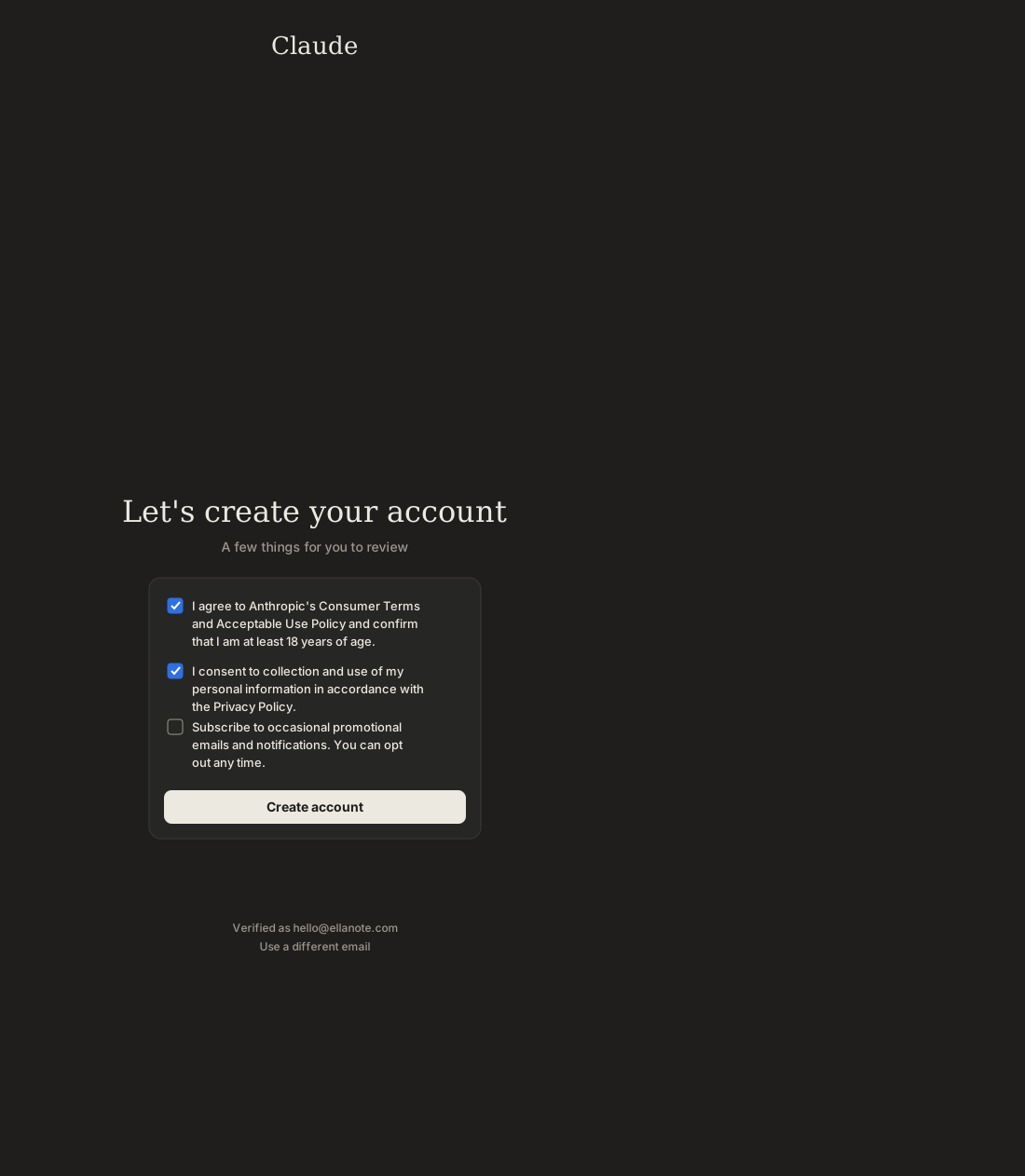
The “Let’s create your account” screen has a few items to check.
- Agreeing to the terms and confirming your age (required)
- Agreeing to how your personal information is used (required where shown; this item may not appear in every country)
- Getting promotional emails (optional, you can leave it unchecked)
Check the required items and click Create account.
Illustration (may look a little different from the real screen)
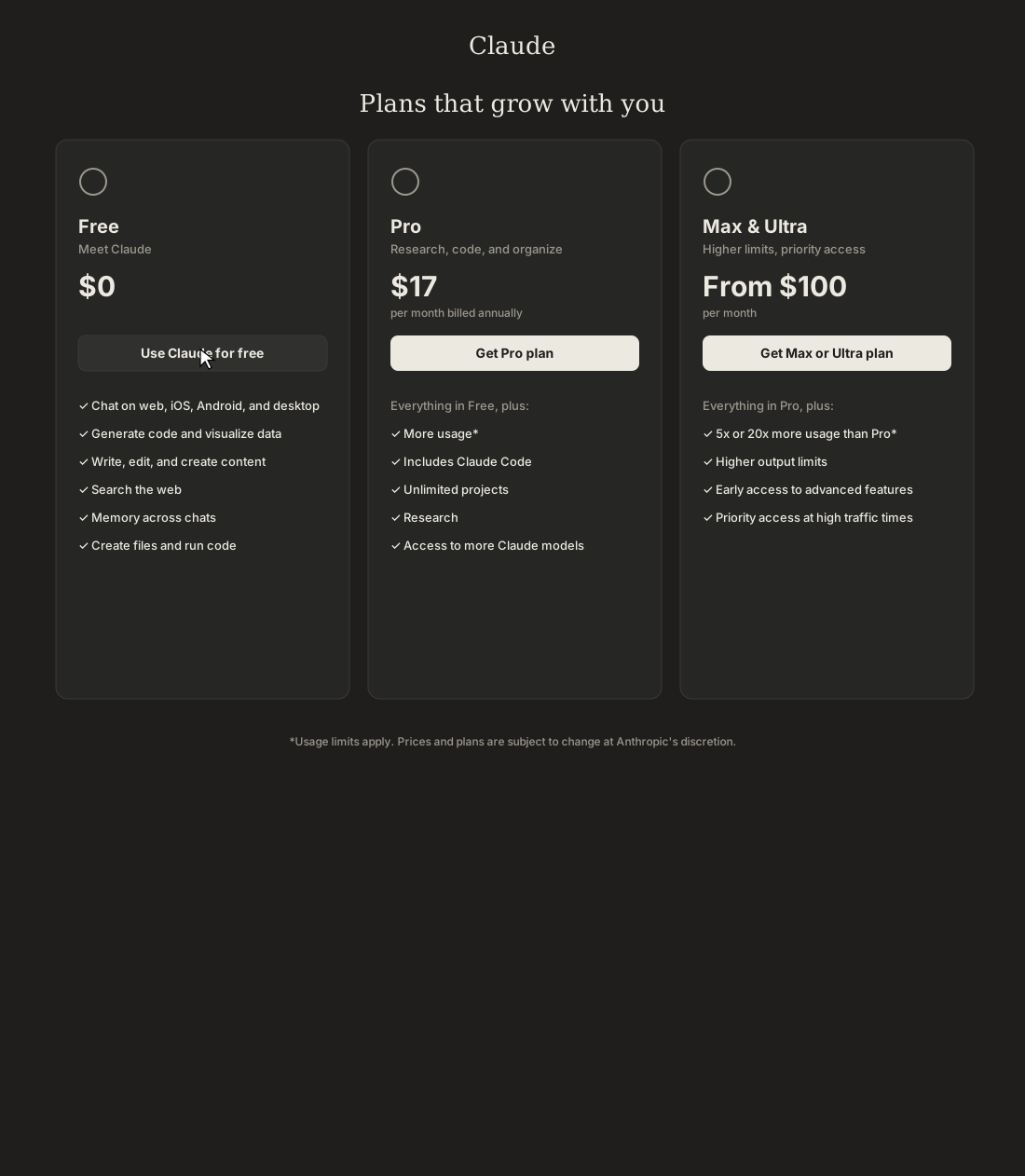
Step 4. Choose “Use Claude for free” on the plans screen
The “Plans that grow with you” screen appears. To start, click Use Claude for free. You can pick a plan again later. If the next screen suggests the desktop app, it’s fine to click Skip for now.
Illustration (may look a little different from the real screen)
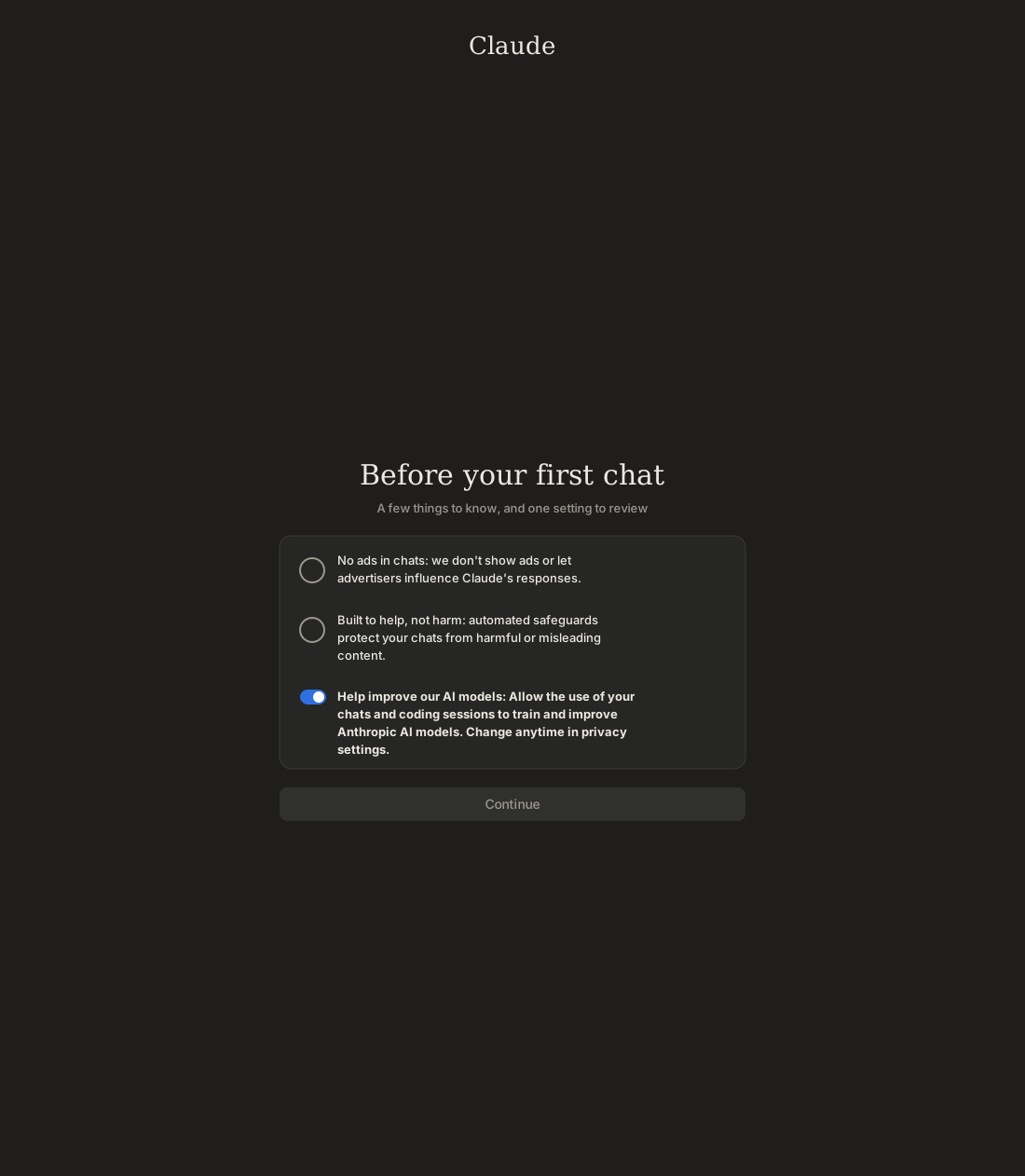
Step 5. Check the settings before your first chat
The “Before your first chat” screen says there are no ads, and has a switch called Help improve our AI models. If it’s on, your chats may be used to improve AI models. If you don’t want that, turn the switch off and click Continue. You can change it later in your privacy settings.
Illustration (may look a little different from the real screen)
Step 6. Tell it your name and what you do
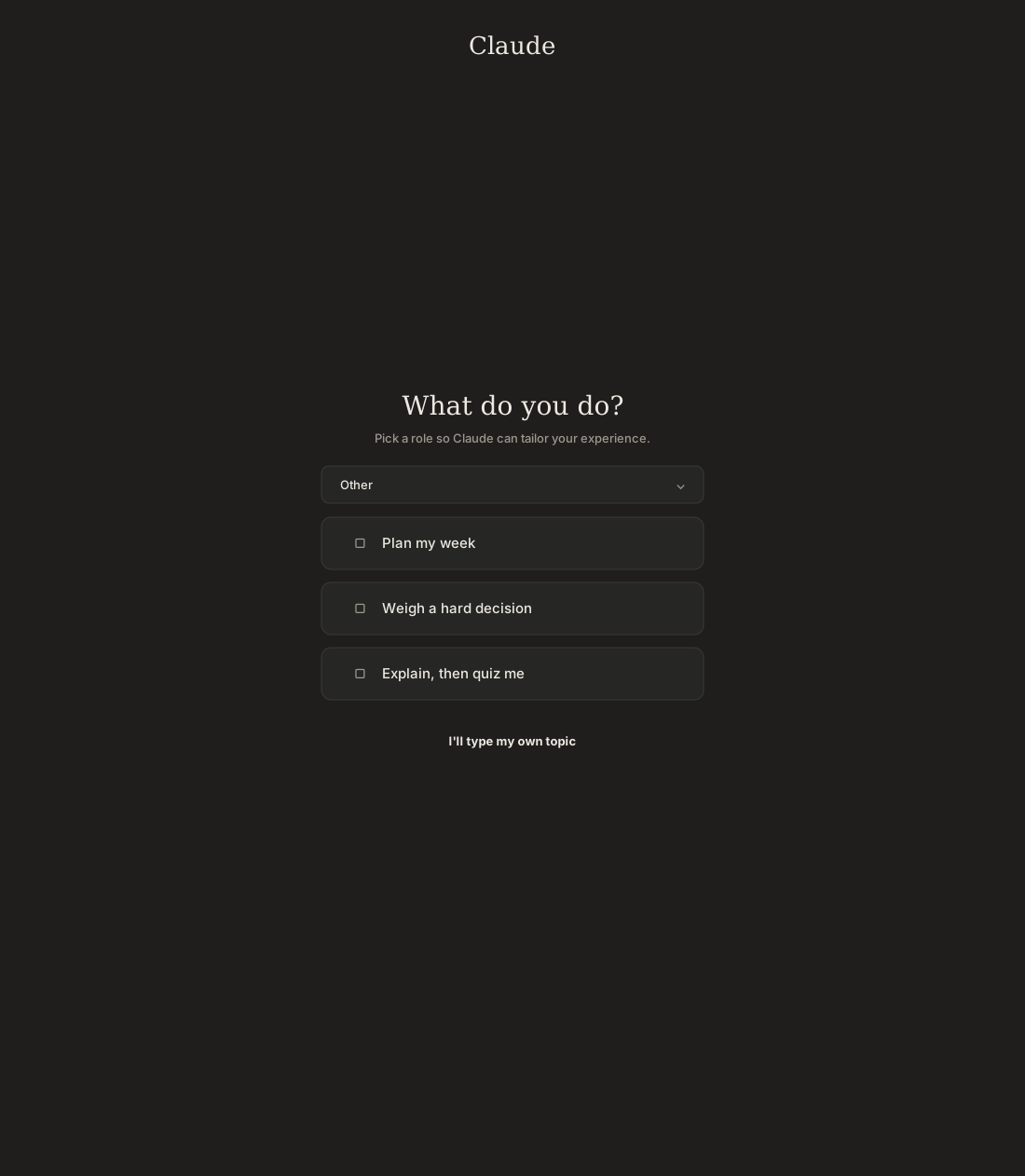
On “What should we call you?”, enter the name you want Claude to call you. On “What do you do?”, pick the role closest to yours and it suggests some topics to start with. You can click a suggested topic, or click I’ll type my own topic.
Illustration (may look a little different from the real screen)
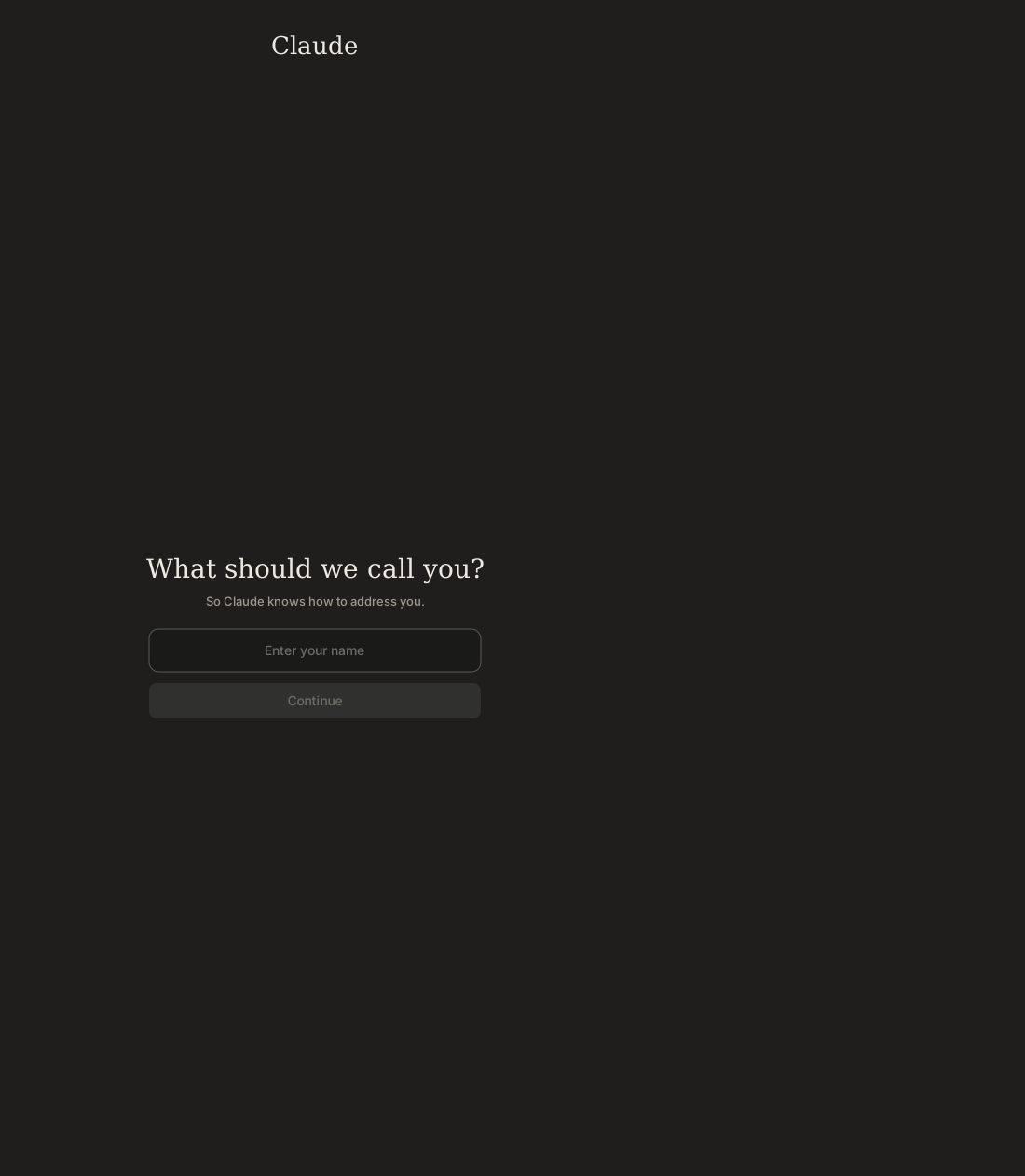
Illustration (may look a little different from the real screen)
Step 7. You’ve reached the chat screen!
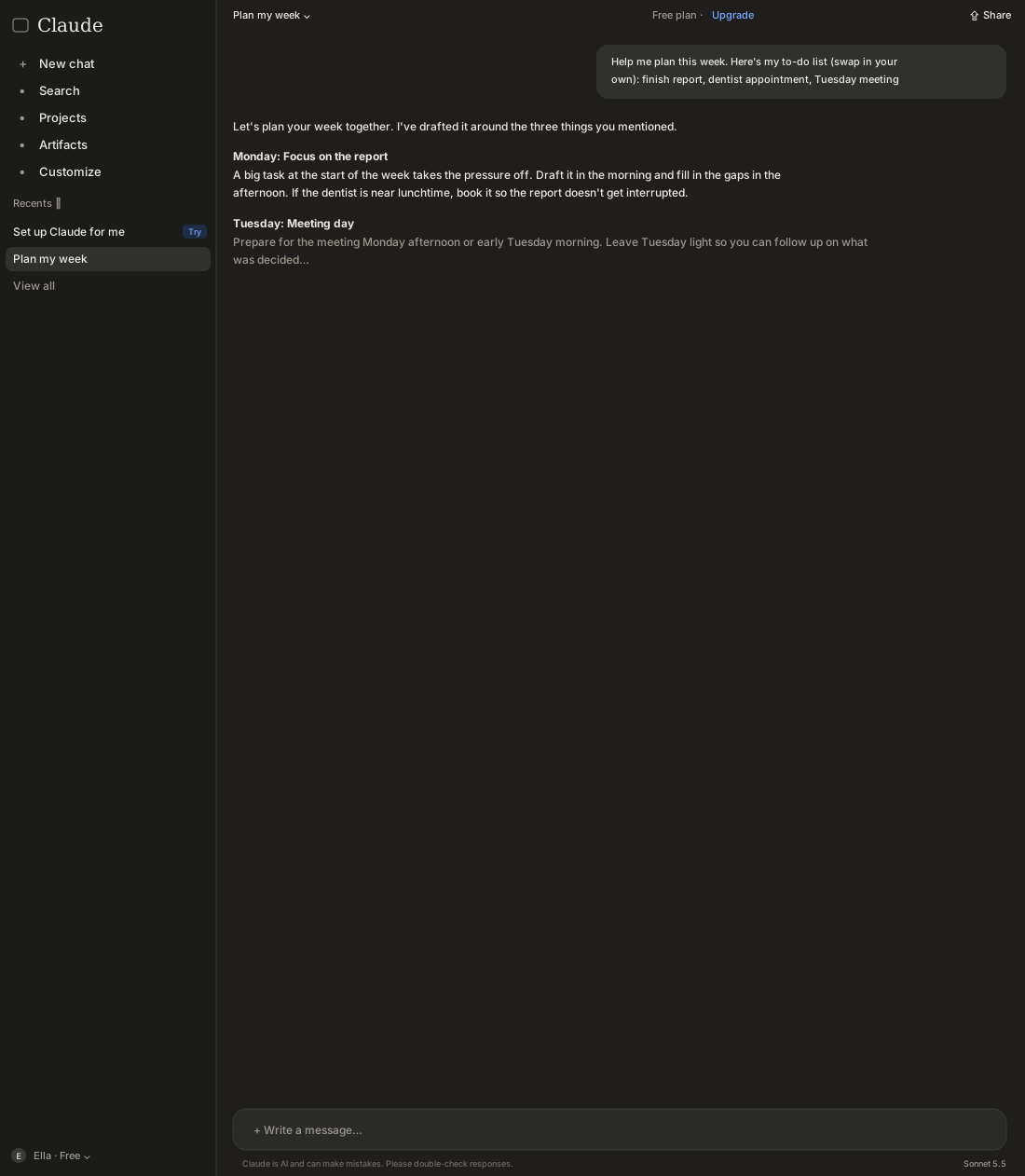
When you see a screen with a menu on the left and a message box at the bottom, you’re signed up. If you see your name and Free at the bottom left, you’re on the Free plan. We’ll ask the first question together in the next tip.
Illustration (may look a little different from the real screen)
How to pick a plan
Free
$0
- Usage limits every 5 hours and every week
- Claude Code ❌
- Plenty for trying it out
Pro
$20 /month
- More than Free
- Claude Code ✅
- $17/month billed yearly
- When you often hit the limit, or want to start Claude Code
Max
$100 /month
- 5× Pro
- Claude Code ✅
- When Pro often isn't enough
Ultra
$200 /month
- No 5-hour limit, 10× Pro weekly usage
- Claude Code ✅
- For people who use it all day
Free is plenty for the Start and Basics levels. If either of the two things below applies to you, that’s when to move up to Pro.
- When you keep hitting the usage limit: you often see a notice that you’ve reached your usage limit, and waiting is hard.
- When you start the Intermediate level (Claude Code): Claude Code isn’t available on the Free plan.
When I switched
I was building a quiz program with Claude to study for an exam. As I kept adding more of the exam material, I used up my free allowance fast. I could have used it again after waiting a few hours, but the exam was the very next day. So I paid for Pro that day.
There was Max too, but I didn’t know whether I’d use that much. I figured I’d start with Pro and move up if it wasn’t enough. You can change plans later. Just note that if you downgrade or cancel, it usually takes effect at the end of the period you’ve already paid for.
Where people get stuck
“The verification email isn’t coming”
- Check your junk or spam folder first.
- Wait a few minutes and refresh your inbox. If it’s still not there, click Resend email on the screen.
- The login link expires after 10 minutes. If you have several old emails, click the button in the most recent one.
- If you made a typo in your email address, click Use a different email and enter it again.
“It says I’ve reached my usage limit”
The Free plan has a set amount you can use every 5 hours, and every week. It refills over time. If it’s not urgent, wait. If you hit it often, consider Pro.
“Why is the amount I’m charged different?”
When you pay on the Claude website, you’re charged in US dollars, and tax may be added on top depending on where you live. If your card is in another currency, your statement shows the amount converted at your card company’s exchange rate, and there may be a small foreign transaction fee. If you pay through a phone app (the App Store or Google Play), the price and payment method may be different.
“I want to cancel or change my plan”
You can change or cancel in the plan (billing) section of Claude’s settings. The detailed rules for cancellations and refunds can change, so check the official information once before you pay.
I'm stuck here
Stuck while following along? Tell me where. Only the site owner sees this. Leave your email only if you'd like a reply.
💌 Get new tips by email
I'll email you when a new tip goes up. No ads, ever.