Ask Claude your first question
In one line
Type in the box and send. That’s it. The key is not trying to get it perfect in one go, and refining as you go.
The big picture
★ A chat = one notebook ★
📒 Same chat
Me: Suggest three dinner ideas for tonight
Claude: Beef stew, chicken pot pie, mac and cheese…
Me: Something lighter
Claude: Salmon poke bowl, chicken noodle soup, veggie stir-fry…
✓ Remembers what came before
📗 New chat
Me: Something lighter
Claude: Lighter than what?
✗ Doesn't know the earlier chat by default
A chat with Claude is like one notebook. Within the same chat, it remembers what came before, so short follow-ups like “shorter” or “something else” still make sense to it. But a new chat is a new notebook, so by default it doesn’t know the earlier conversation. (Even the Free plan has a memory feature called memory across chats. If it’s on, Claude may remember some of your past chats.)
Follow along
Start from the chat screen you see right after signing up. These pictures redraw the screens Ella saw when she tried this on the evening of November 5, 2026, in English. You can copy the practice questions as is, or change them to fit your situation.
Step 1. Write your question and send it
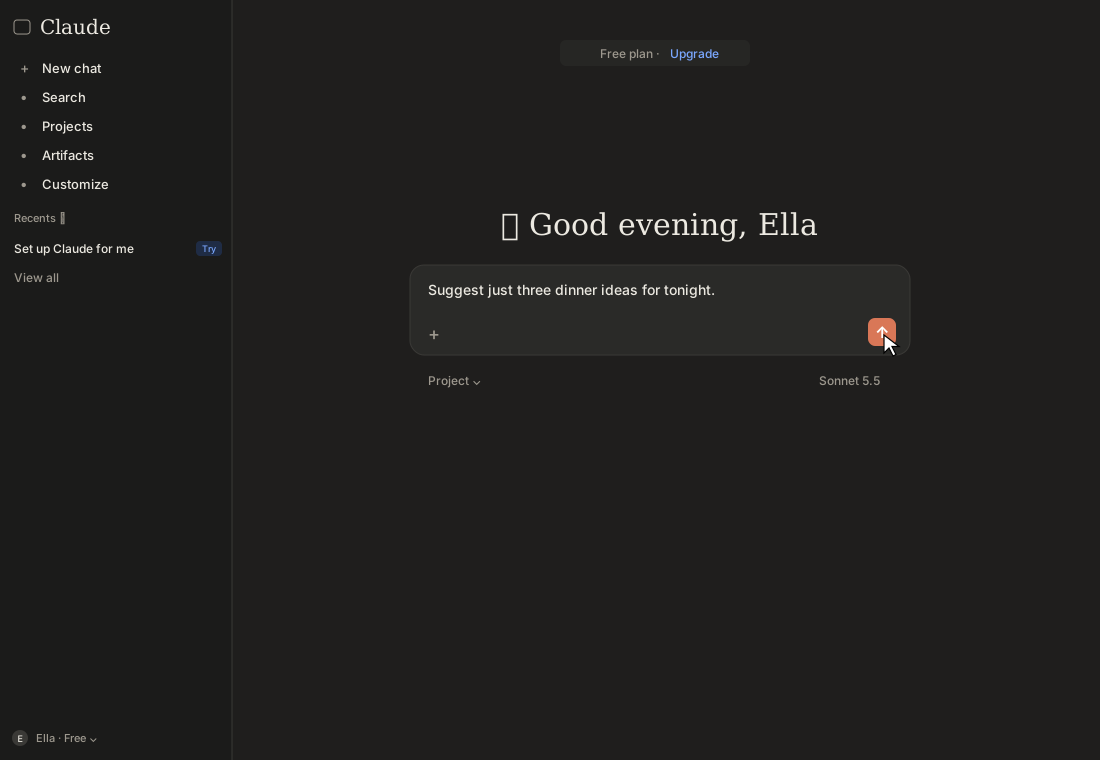
Click the input box under the greeting (How can I help you today?) and type this. When you’re done, click the orange send button (the arrow) on the right or press Enter on your keyboard. On a phone, Enter often just starts a new line, so tap the send button.
Suggest just three dinner ideas for tonight.
Illustration (may look a little different from the real screen)
Step 2. Read the answer and copy it
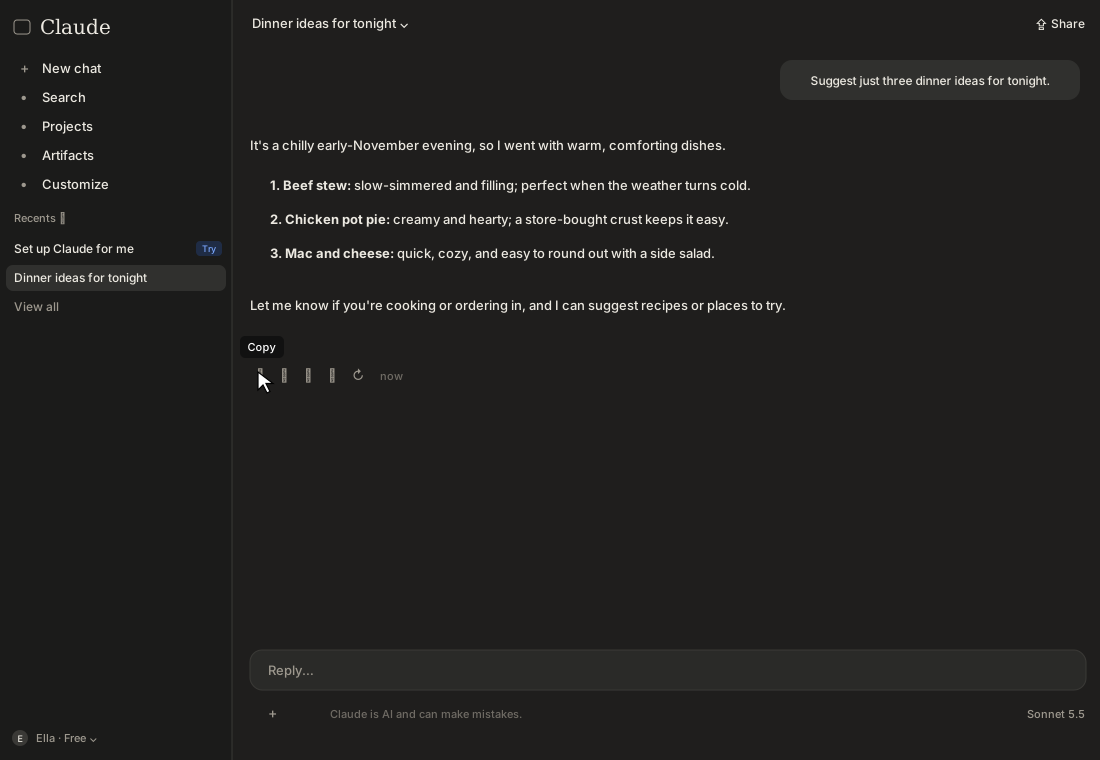
The answer appears bit by bit. When it’s finished, small icons show up right below it. Hover over the leftmost icon and it says Copy. Click it to copy the whole answer, so you can paste it into a notes app or a message.
Illustration (may look a little different from the real screen)
Step 3. Keep refining
It’s fine if the answer isn’t quite right. In the Reply box at the bottom, keep going like this:
Make them lighter.
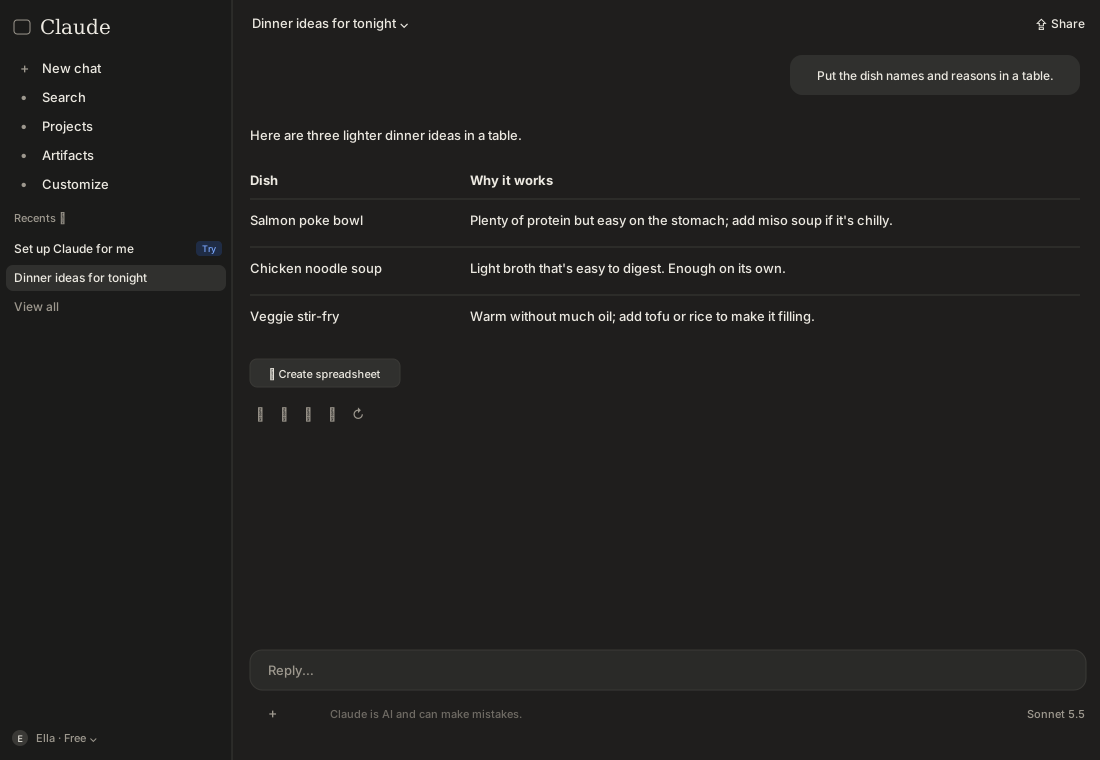
Put the dish names and reasons in a table.
Because it remembers the conversation, it switches to lighter dishes and puts them in a table without you explaining everything again. In real use, adding one short note at a time, like “shorter,” “more formal,” or “so a kid could understand,” makes the result better and better.
Illustration (may look a little different from the real screen)
Step 4. Get a new answer, or edit what you sent
If the answer is way off, or your question was missing something, you have two options.
- Get a new answer: click the circular arrow (Retry) among the icons below the answer to get a fresh answer to the same question.
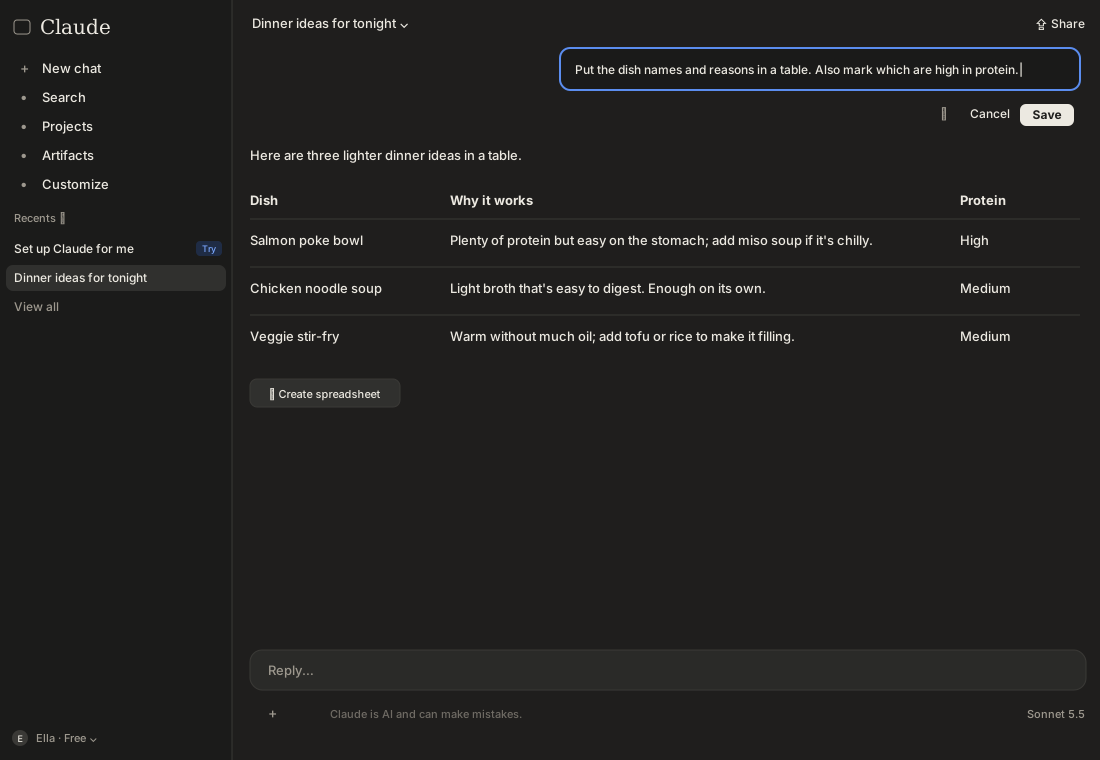
- Edit your question: on a computer, click the question you sent and it turns into a box you can edit (or click the pencil icon that appears when you hover). On a phone, tap the question and look for Edit in the menu. After editing, click Save and Claude answers again from that point. To stop, click Cancel.
After getting the table, Ella edited her question like this:
Put the dish names and reasons in a table. Also mark which are high in protein.
She got a new table with a Protein column added. There’s more on asking again in Ask again for a better answer.
Illustration (may look a little different from the real screen)
Step 5. Start a new chat and find old ones
When the topic changes, open a new chat. Click New chat at the top left and you’re back at the greeting screen. Past chats stay in the Recents list on the left, so you can click one and pick up where you left off. If it’s hard to find, click Search.
Illustration (may look a little different from the real screen)
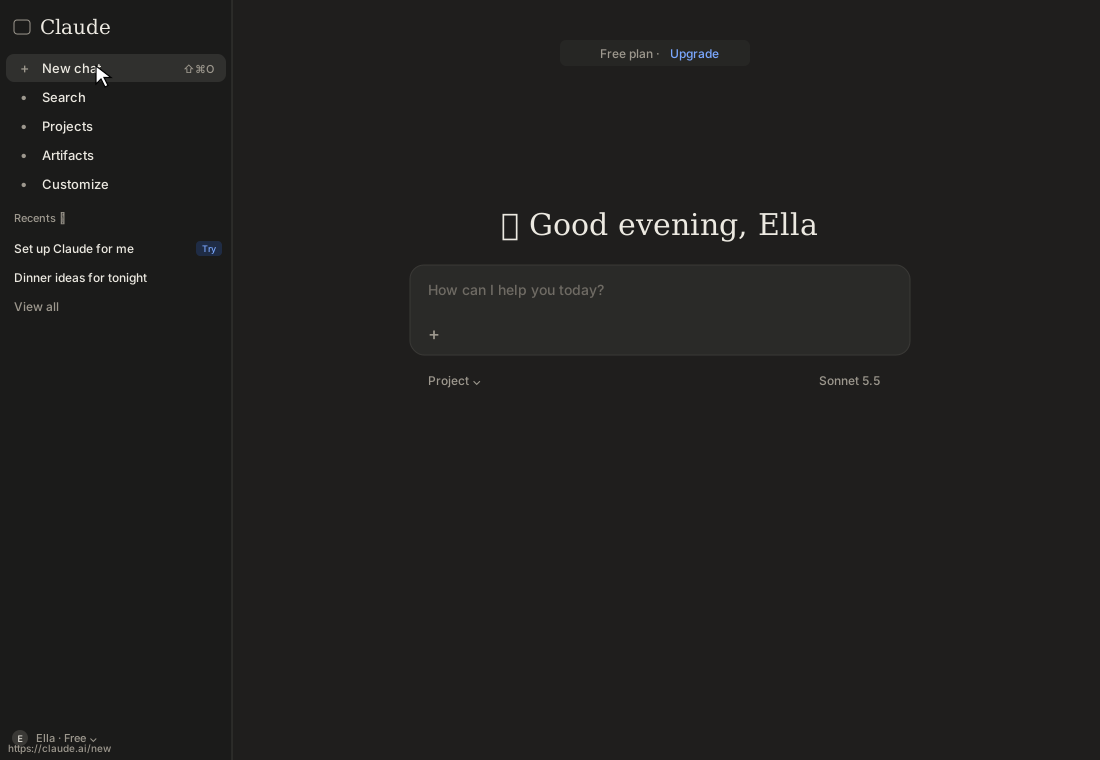
Button names and positions can shift a little when Claude’s screens change. Use these pictures as a guide and look for similar buttons.
Where people get stuck
“I opened a new chat and it doesn’t know what we talked about”
That’s because a new chat is a new notebook by default. To keep going, click the original chat in the list on the left and continue there. If you’ve already opened a new chat, just paste the information it needs again.
“The chat got so long it’s slow, and I hit the limit quickly”
The longer the chat, the more Claude rereads everything before it each time, so it can slow down and use up your allowance faster. You’ll especially notice this on the Free plan. If the topic has changed or the chat is very long, sum up the important parts and move to a new chat.
“The answer cut off in the middle”
If it stopped because the answer was too long, sending “Continue” in the same chat usually picks it up. If there’s a continue button on the screen, you can click that too. If you see a usage limit notice, you’ll need to wait until the limit resets (see Sign up and pick a plan). If it stopped because your internet dropped, try Retry.
“I pressed Enter and it only made a new line, or it sent too early”
Usually Enter sends and Shift + Enter makes a new line. When pasting long text, don’t press Enter partway through. Paste it all at once, then send. If you sent something by mistake, fix it with Edit.
I'm stuck here
Stuck while following along? Tell me where. Only the site owner sees this. Leave your email only if you'd like a reply.
💌 Get new tips by email
I'll email you when a new tip goes up. No ads, ever.