New to AI? Start here → Start 1. ChatGPT vs. Codex: what's the difference?
Schedule runs and check for failures
In one line
Schedule runs and check for failures
Not just when it runs, but where it runs and who checks it.
The big picture
Illustration (may look a little different from the real screen)
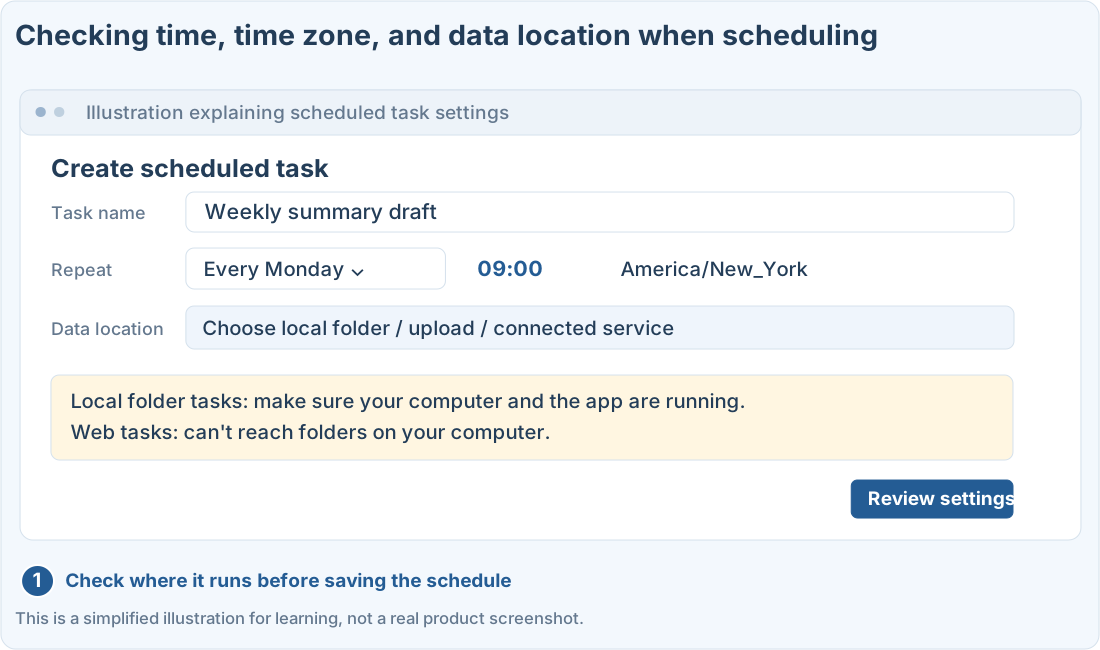
Follow along
Only schedule tasks that already work by hand
Whether scheduling is available depends on your account and workspace. First run the prompt by hand and check that the input and results are right. This guide shows how to schedule, but doesn’t create a real schedule.
Check four things about the schedule
1. Decide the task and where results go
Write down the scope, for example “Draft a weekly summary of this specific material.” Include where you’ll review the results and how it should tell you if the material is missing.
2. Set how often and the time zone
For every Monday at 9 a.m., also give a time zone like America/New_York. Check whether it runs once or repeats. After asking for the schedule in the chat, review the saved settings.
3. Check the first run under Scheduled
On the scheduled tasks screen available to your account, check the saved task and its run history. Look at the status and errors so a failed run with no results isn’t mistaken for a normal one.
4. Also learn how to stop or change it
If the schedule or input changes, edit or pause the scheduled task. Also check that the same task wasn’t created twice.
Prompts you can copy
Review the settings before scheduling
Check the first scheduled run
Where people get stuck
What to review when it fails
Illustration (may look a little different from the real screen)
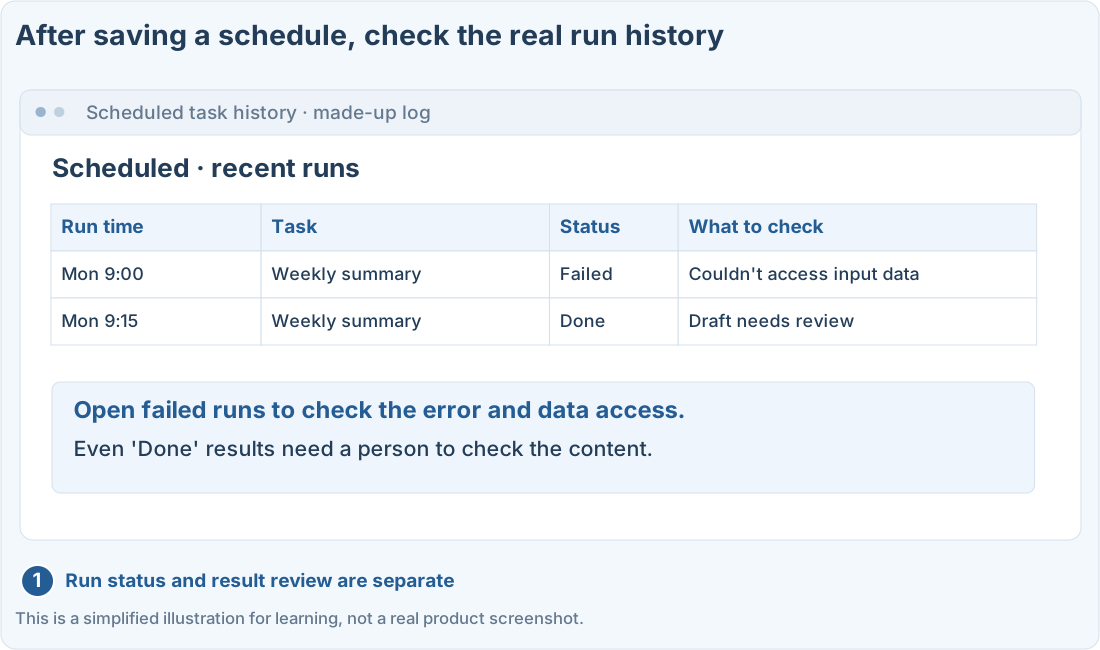
Schedules that use a local folder need your computer on and the app running. A web schedule won’t read that folder for you. Scheduled tasks also count toward your plan’s usage and permission limits.
Quick check: Does a desktop schedule that uses a local folder always run, even when my computer is off?
Answer: “No, check that the computer and app conditions are met”
Local tasks need that computer, the app, and file access. Keep them separate from web tasks.
Official sources
I'm stuck here
Stuck while following along? Tell me where. Only the site owner sees this. Leave your email only if you'd like a reply.
💌 Get new tips by email
I'll email you when a new tip goes up. No ads, ever.