New to AI? Start here → Start 1. ChatGPT vs. Codex: what's the difference?
Connect Notion and check which pages it can see
In one line
Connect Notion and check which pages it can see
Confirm the workspace with your notes and the pages the AI will read.
The big picture
Illustration (may look a little different from the real screen)
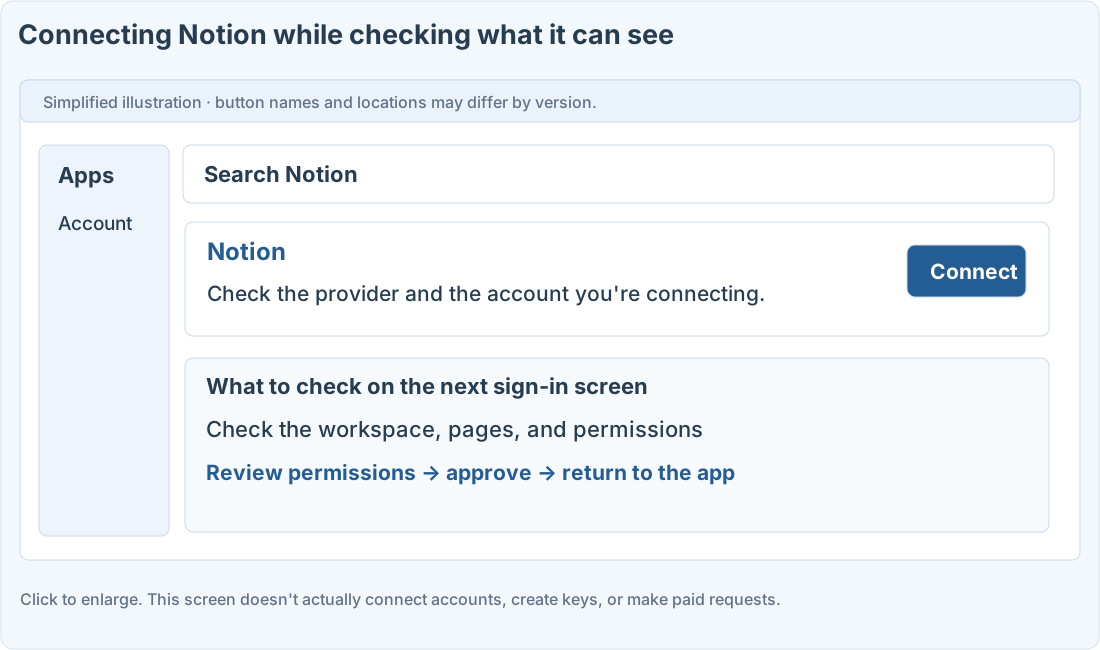
Follow along
Decide which workspace has your material
Have a Notion account and a test page with no sensitive information. This guide covers connecting your account from the directory. That’s a different process from creating a developer token for the Notion API.
Check Notion sign-in and page selection
1. Search for Notion in the current apps or plugins list
Read the provider and supported features, then start connecting. If it isn’t there, check your plan, region, and admin settings. Don’t try to fix it by entering keys from other services.
2. Check the Notion workspace
On the browser sign-in screen, choose the account and the workspace you want.
3. Review the access shown on the permissions screen
If there’s an option to choose specific pages, start with your test page. Read the access shown, approve, and return to the app.
4. Test reading with a page link
Use the prompt below to point to the original page link. Check that it actually read the title and content before moving on to editing.
Prompts you can copy
Check reading with one page
Get a plan before editing
Where people get stuck
Not in the directory, or the connection fails
Notion also offers an official MCP connection. Check the official docs for supported clients and the current sign-in steps. Don’t assume connecting from the directory and adding a custom MCP happen on the same screen.
If it can’t read a page, check the page’s permissions, the workspace, and what you approved. Even after connecting, check separately that the page content was read correctly.
Quick check: If the Notion page name shows up in the answer, did it successfully read the content too?
Answer: “No, compare against the actual content”
It may know the page title without having read the content. Compare it with what’s really there.
Official sources
I'm stuck here
Stuck while following along? Tell me where. Only the site owner sees this. Leave your email only if you'd like a reply.
💌 Get new tips by email
I'll email you when a new tip goes up. No ads, ever.