New to AI? Start here → Start 1. ChatGPT vs. Codex: what's the difference?
Build your first web page with Codex
In one line
Build your first reading-log page with Codex
Start from an empty folder and finish by opening it in your own browser.
The big picture
Illustration (may look a little different from the real screen)
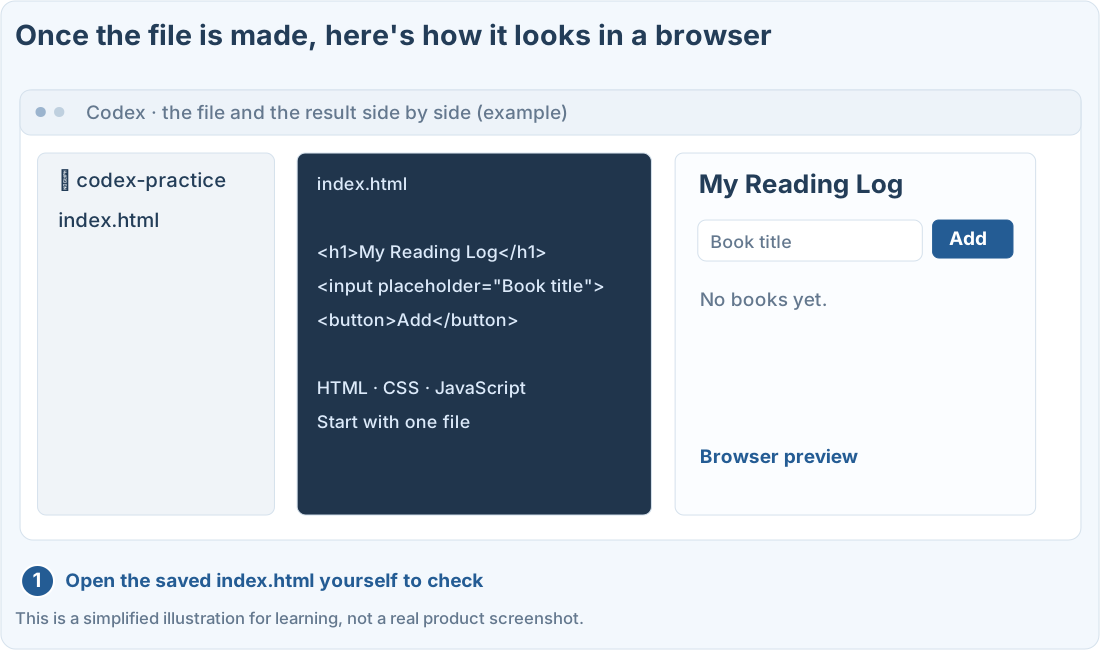
Follow along
First, check the install and folder
This lesson uses Codex on the desktop and an empty folder on your computer. That’s different from the Codex Cloud exercise on the web. First finish the illustrated guide to installing and choosing a folder.
- Practice folder: codex-practice
- Result: a single index.html file
- Runs with no extra packages, outside APIs, or sign-ups
- Features: add book titles, mark as read, delete
See the finished example first ↗
Send your first request to create the file
1. Check that you’re in Codex and in the right folder
Choose Codex in the product menu and set the working folder to codex-practice. Don’t practice in a folder that has real work files in it.
2. Read the plan, then ask it to create the file
Paste the first prompt below. It asks for a plan only. Check that the plan works with a single index.html, then follow up with “Create the files according to this plan.”
3. Open the file in Finder or File Explorer
Open Finder on Mac or File Explorer on Windows and go to codex-practice. Double-click index.html to open it in your default browser. If an editor opens instead, right-click the file, choose Open With, and pick your browser.
If you can’t see the file, ask Codex: “Tell me the full path of the file you actually saved.” Also check that it wasn’t saved by mistake with .txt on the end.
Click around and check three things
- Type “AI for Beginners” as the title and click Add. A new row should appear in the list.
- Click Add with the box empty. If an empty book shows up in the list, it needs fixing.
- Check that marking as read and deleting only affect that one book.
Illustration (may look a little different from the real screen)
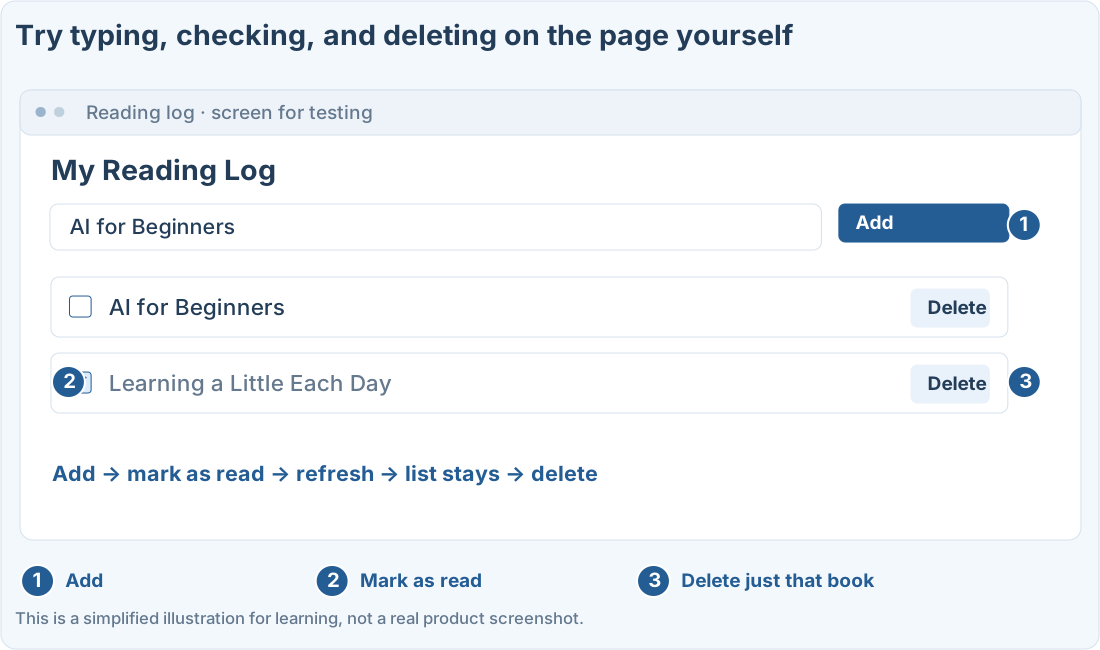
The prompt below asks it to save in the browser. Refresh and check that the list stays, in the same browser. Saving may be limited depending on local files and your browser, and it won’t sync to other devices automatically.
If something breaks, describe what happens and how to make it happen
Instead of “It doesn’t work,” say “I typed a title and clicked Add, but nothing showed up in the list.” Include any error message you see, and ask it to fix only the related part.
After the file is changed, refresh the browser to see the changes. Also check that the address is the same file that was changed.
A page you open on your own computer isn’t a website on the internet yet. Putting it online is a separate step called deploying.
Prompts you can copy
Change the parts in square brackets to fit your situation, then paste it into the real ChatGPT or Codex screen.
Plan the reading-log page
Fix something that isn’t working
Where people get stuck
Quick check: I opened index.html on my computer. Can other people visit it on the internet now?
Answer: “No, putting it online needs a separate deploy step”
Opening a file on your computer is different from deploying it to a server. For others to visit, it needs separate hosting and deployment.
Official sources
I'm stuck here
Stuck while following along? Tell me where. Only the site owner sees this. Leave your email only if you'd like a reply.
💌 Get new tips by email
I'll email you when a new tip goes up. No ads, ever.